
DNSBL Check: Monitor DNS Blacklist Listings
- guide
- dnsbl monitoring
- dns blacklist check
- email deliverability
- spam blacklist
A DNSBL check looks your domain or IP up against a set of DNS blacklists on a fixed schedule and tells you the moment any one of them lists it. This matters more than most uptime problems because it does not show up as a visible outage - your site can be running perfectly while a growing share of the email your business sends quietly stops arriving. Mail servers and spam filters consult these same blacklists before deciding whether to accept, quarantine, or silently drop a message, so a listing you do not know about can cost you weeks of undelivered invoices, password resets, and support replies before anyone notices the pattern.
Main Settings
No screenshot is available for this section on its own for this check type, but every control in it still needs explaining:
- Domain / IP - the domain or IP address to look up against the monitored blacklists.
- Name (optional) - a short label for this monitor in alerts, reports, and your dashboard. Leave it blank and HostTracker falls back to the domain.
- Monitoring enabled - pauses or resumes the check without deleting it.
- How this check works - a collapsed info note: the check runs on a fixed schedule, every 6 hours, from HostTracker's own monitoring network. There is no interval slider for this type - a blacklist listing does not change fast enough to justify a tighter interval, and checking every few minutes would just hammer the same DNSBL zones for no benefit.
- Tags - free-text labels for filtering and grouping this monitor on your dashboard.
- Full Log - saves every individual check result instead of grouping consecutive identical ones.
- Open Stats - generates a public, shareable stats page for this monitor.
Check Configuration
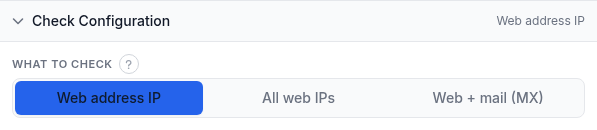
This is the one type-specific setting for a DNSBL monitor - which address (or addresses) actually get looked up against the blacklists:
- Web address IP (the default) - checks only the IP address your domain's web record resolves to.
- All web IPs - checks every IP address returned for the domain, useful behind a load balancer or CDN with more than one public IP.
- Web + mail (MX) - additionally checks the IP addresses of your domain's mail servers, the ones that actually receive your email and are the ones spam filters look up. If deliverability is your real concern rather than the web host's reputation, this is the option that answers it.
Alert Subscriptions
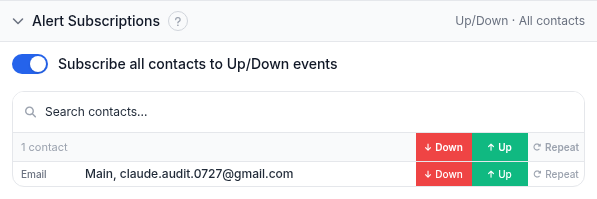
The same subscriptions panel every check type uses. Toggle Subscribe all contacts to Up/Down events to put every contact on both events at once, or use the search box and the per-contact Down / Up / Repeat switches to build a specific list. The check goes Down the moment it finds even one blacklist listing that counts toward the verdict - there is no "wait for a second hit" grace period, so put your deliverability-critical contacts (whoever manages your mail sending reputation) on Down here.
Report Subscriptions
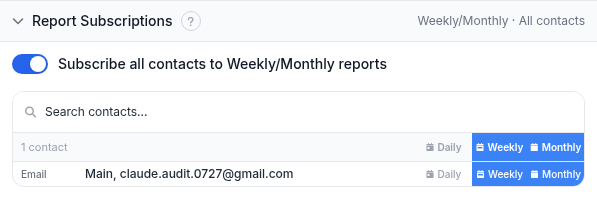
Periodic email summaries rather than event-driven alerts. Reports go to email contacts only.
Reading a listing and acting on it
Once a DNSBL monitor exists, its detail page carries a live Blacklist status panel (separate from the settings above - it only appears once the monitor has run). If nothing is listed it says so plainly. If something is, each entry shows the blacklist's name, the exact endpoint that got listed, a short note explaining the listing, and two actions worth knowing about before you panic:
- A listing flagged MAJOR is a high-severity blacklist worth acting on immediately; other listings are lower-impact but still counted.
- A Delist link, when the blacklist operator provides one, takes you straight to that list's own removal request page - the fastest path back to a clean status, since only the operator can take you off their list.
- A Mute button lets you suppress one specific listing from the monitor's verdict, for a list you have disputed or judged low-impact, without muting the whole check. Delisting itself still has to happen on the blacklist operator's side; muting only changes what HostTracker alerts you about.
Worked example
Your company sends transactional email - receipts, password resets - from mail.example.com, and
a compromised account on your mail server recently got you added to a blacklist without your knowledge. Create
a DNSBL monitor for example.com, set Check Configuration to Web + mail (MX) so the
sending IPs themselves are covered, and subscribe your mail admin's email and a shared team channel to Down and
Repeat - Repeat matters here because a listing that drags on for days is exactly the kind of thing that is easy
to forget about once the first alert has scrolled off. Nothing else to configure; the check runs every 6 hours
from here on.
Troubleshooting
- Listed on a blacklist you have never heard of. Open the Blacklist status panel and read the note for that entry - some lists are informational and carry little real-world weight, others actively affect mail delivery. Use the Delist link if one is provided; that is the only place the actual removal happens.
- You fixed the underlying issue but the monitor still shows Down. Most blacklist operators take some time to re-scan and clear a delisting request after you submit it - the monitor will pick up the change on its next scheduled run once the operator's own list updates.
- You only care about mail deliverability, not the web server's reputation. Switch Check Configuration to Web + mail (MX) so your mail servers' IPs are actually part of what gets checked - the default only looks at the web address.
- You want a listing to stop alerting while you wait for it to clear. Use Mute on that specific entry in the Blacklist status panel rather than disabling the whole monitor - you will still be told about any new, unrelated listing.
Related
- DNS blacklist monitoring - the product page for this check type.
- Free DNSBL check tool - a one-off blacklist lookup with no account needed.
- Russian blacklist guide - a different check type readers sometimes land on by mistake: a government content-blocking registry, not a spam blacklist.
- HTTP check guide - DNSBL is also available as an attached tile on an Http, Port, or API monitor, riding along with that check instead of running as its own separate monitor.