
SNMP Monitoring Setup Guide for Network Devices
An SNMP check reads a single numeric value straight from a network device by its OID (object identifier), on a schedule, and records it so you can watch it over time. The device can be a router, switch, firewall, UPS or printer. This is the right check for SNMP monitoring when the thing you need to monitor is not a website but a piece of infrastructure that speaks SNMP and nothing else, hardware that will never run a web server or a collector script.
Before you start
Like HostTracker's other private-infrastructure checks, SNMP has no Monitoring Locations section. There is no picker for public checkpoints, because the poll runs from HostTracker's own private checking infrastructure rather than the distributed public network. So the device has to be reachable from HostTracker's checkers, on whatever port it listens for SNMP on (conventionally UDP 161, the value already filled in as a placeholder in the panel). A device sitting behind a firewall with no inbound access at all cannot be polled. Have the device's read community string (for SNMP v1/v2c) or a configured SNMPv3 user with its authentication and privacy keys in hand before you start, plus the exact OID for the value you want to read. Your device's documentation or MIB browser is the source for that; HostTracker does not discover OIDs for you.
Target device
- Host : Port - the device's hostname or IP address, and the port it listens on for SNMP (161 by convention).
- OID - the dot-separated numeric object identifier for the value to read, for example
1.3.6.1.2.1.1.3.0forsysUpTime.
An optional Name field below those lets you label the monitor, which matters more than usual here since a single device can carry several SNMP checks, one per OID.
Main Settings
- Interval - from 1 minute up to 24 hours, plus a cron-schedule alternative.
- Tags - free-form labels for grouping and filtering monitors.
- Full Log - saves every individual polled value instead of only grouped summaries.
- Open Stats - makes this monitor's statistics and log page shareable, including with people who are not signed in.
Connection
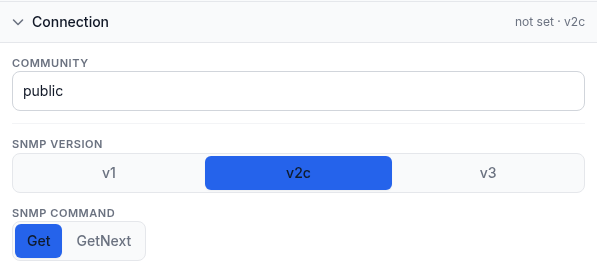
- Community - the v1/v2c read community string, shown only when one of those versions is selected. It defaults to
public, which is also the factory default on a great many devices. Change it if yours has been secured with a different one. Community strings travel in plain text with v1 and v2c, so avoid relying on a sensitive one over an untrusted network. - SNMP version - v1, v2c or v3. v3 is the only version with real security: it authenticates and optionally encrypts, so credentials are not sent in the clear the way a v1/v2c community string is.
- When v3 is selected, three more fields appear: Security name (user), the SNMPv3 username configured on the device; Security level, one of
noAuthNoPriv(no authentication, no encryption),authNoPriv(authentication, no encryption) orauthPriv(authentication and encryption); and, once a level abovenoAuthNoPrivis chosen, an Authentication protocol (MD5, SHA or SHA-256) with its key, and, forauthPrivonly, a Privacy protocol (DES, AES, AES-192 or AES-256) with its own key. Both keys need at least 8 characters and must match what the device itself is configured with. - SNMP command - Get reads the exact OID you supplied. GetNext walks to the following OID in the device's tree instead, which is useful when you know roughly where a value lives but not its exact index.
Response Validation
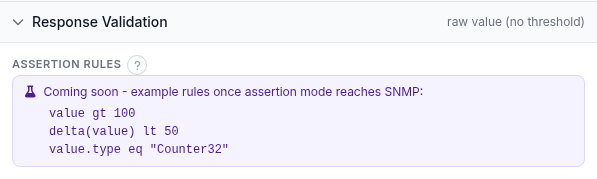
An SNMP check reads and records the value the device reports, and charts it over time, but it does not yet judge that value against a threshold. The Assertion rules panel shown in the screenshot is a preview of a rule language HostTracker already uses elsewhere. The box is labelled Coming soon and does nothing yet for SNMP checks. Until that ships, a Down result from an SNMP check means the poll itself failed: the device did not answer, rejected the credentials, or the OID does not exist. It does not mean the returned number crossed some limit you set. If you need an alert triggered by a numeric threshold today, a server-load (CPU/RAM/disk) monitor against a small collector endpoint has that condition-and-debounce model already built. See the CPU, RAM and disk guide.
Alert Subscriptions
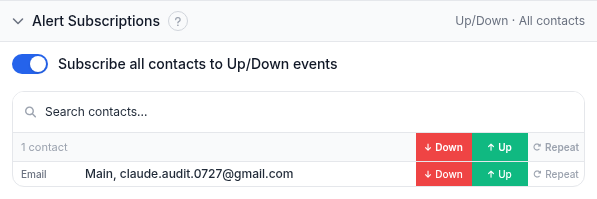
Choose which contacts hear about this monitor and for which events: Up, Down, and Repeat (a repeated reminder while the check stays down). A single switch subscribes every contact to Up/Down at once, or pick individual contacts and events from the table below it. For now, Down here reflects reachability of the device and the OID, not the value itself.
Report Subscriptions
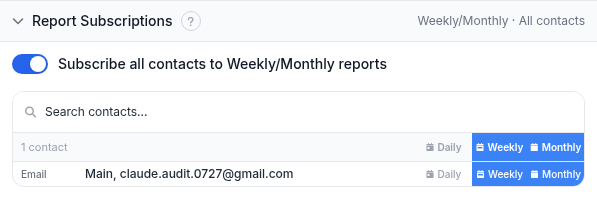
Separately from alerts, choose who receives periodic reports for this monitor - Daily, Weekly or Monthly - by email.
Worked example
Charting uptime on an office router: Host : Port is the router's LAN-facing management IP and 161, OID is 1.3.6.1.2.1.1.3.0 (sysUpTime), SNMP version is v2c with the device's configured community string, and the command is Get. The interval is set to 10 minutes, which is frequent enough to catch a reboot without hammering the device. Since there is no threshold to fail yet, leave alerts unsubscribed and watch the value through the monitor's chart instead. The point of this particular check, today, is the historical record rather than an alert.
Troubleshooting
- No response at all. Confirm the device is reachable from HostTracker's check network on the port you specified (through a scoped firewall rule or a VPN endpoint, never by opening SNMP to the whole internet), that its firewall allows that inbound SNMP, and that the community string (or v3 credentials) is correct.
- A value comes back but it is not what you expected. Double-check the OID against your device's documentation, and try GetNext instead of Get if you were only estimating the index.
- SNMPv3 fails where v2c worked. Security level, authentication protocol and privacy protocol all have to match the device's configuration exactly. A mismatch on any one of them fails the whole handshake, not just the missing piece.
- Expecting an alert when the value crosses a limit. That is not available for SNMP yet; the Assertion rules panel is a preview, not a working switch. Use a server-load monitor with a collector if you need threshold alerting today.
- Worried about the community string being visible on the wire. That is a property of SNMP v1/v2c, not a bug in the check. Move to v3 with authentication and privacy if the value or the device is sensitive.
Related
- All monitoring guides - the hub for every HostTracker check type.
- Server monitoring: CPU, RAM and disk - the product page covering both SNMP and server-load checks.
- CPU, RAM and disk monitoring guide - the alternative route to a numeric value with working threshold alerts today.
- What is server monitoring - the background on what these checks are for.
- Database check guide - another check that runs from HostTracker's private infrastructure rather than the public network.
- Assertion mode and response-validation rules - the response-validation rule language previewed in the Assertion rules panel above.
- All HostTracker monitoring features - see every check type side by side.