
Guia de configuração de monitoramento SNMP para dispositivos de rede
Uma verificação SNMP lê um único valor numérico diretamente de um dispositivo de rede pelo OID dele (identificador de objeto), em uma agenda, e registra esse valor para que você possa acompanhá-lo ao longo do tempo. O dispositivo pode ser um roteador, switch, firewall, nobreak ou impressora. Essa é a verificação certa quando o que você precisa monitorar não é um site, mas uma peça de infraestrutura que fala SNMP e mais nada, um hardware que nunca vai rodar um servidor web ou um script coletor.
Antes de começar
Como os outros tipos de verificação de infraestrutura privada da HostTracker, o SNMP não tem seção de Localidades de Monitoramento. Não há seletor de pontos de verificação públicos, porque a consulta roda a partir da própria infraestrutura de verificação privada da HostTracker, e não da rede pública distribuída. Então o dispositivo precisa estar acessível a partir dos verificadores da HostTracker, na porta em que escuta SNMP (convencionalmente UDP 161, o valor já preenchido como referência no painel). Um dispositivo atrás de um firewall sem nenhum acesso de entrada não pode ser consultado. Tenha em mãos a community string de leitura do dispositivo (para SNMP v1/v2c) ou um usuário SNMPv3 configurado com suas chaves de autenticação e privacidade, além do OID exato do valor que você quer ler. A documentação do seu dispositivo ou um navegador de MIB é a fonte para isso; a HostTracker não descobre OIDs por você.
Dispositivo alvo
- Host : Porta - o nome de host ou endereço IP do dispositivo, e a porta em que ele escuta SNMP (161 por convenção).
- OID - o identificador de objeto numérico separado por pontos para o valor a ler, por exemplo
1.3.6.1.2.1.1.3.0parasysUpTime.
Um campo opcional de Nome abaixo desses permite rotular o monitor, o que importa mais do que o usual aqui, já que um único dispositivo pode carregar várias verificações SNMP, uma por OID.
Configurações Principais
- Intervalo - de 1 minuto até 24 horas, mais uma alternativa de agenda cron.
- Tags - rótulos de texto livre para agrupar e filtrar monitores.
- Log Completo - salva todo valor consultado individualmente em vez de só resumos agrupados.
- Estatísticas Abertas - torna a página de estatísticas e log desse monitor compartilhável, inclusive com pessoas que não estão logadas.
Conexão
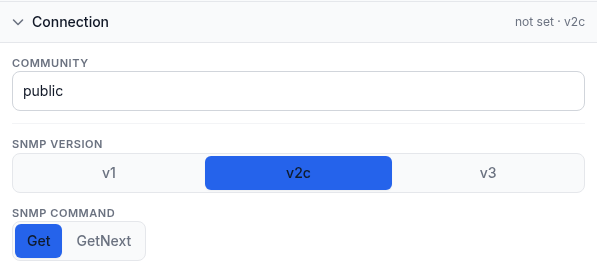
- Community - a community string de leitura v1/v2c, mostrada só quando uma dessas versões está selecionada. O padrão é
public, que também é o padrão de fábrica em muitos dispositivos. Mude se o seu tiver sido protegido com uma diferente. Community strings viajam em texto puro com v1 e v2c, então evite depender de uma sensível em uma rede não confiável. - Versão SNMP - v1, v2c ou v3. A v3 é a única versão com segurança de verdade: ela autentica e, opcionalmente, criptografa, então as credenciais não são enviadas em texto claro como uma community string v1/v2c.
- Quando v3 é selecionada, mais três campos aparecem: Nome de segurança (usuário), o nome de usuário SNMPv3 configurado no dispositivo; Nível de segurança, um entre
noAuthNoPriv(sem autenticação, sem criptografia),authNoPriv(autenticação, sem criptografia) ouauthPriv(autenticação e criptografia); e, uma vez escolhido um nível acima denoAuthNoPriv, um protocolo de Autenticação (MD5, SHA ou SHA-256) com a chave dele, e, só paraauthPriv, um protocolo de Privacidade (DES, AES, AES-192 ou AES-256) com a própria chave. As duas chaves precisam de pelo menos 8 caracteres e devem bater com o que o próprio dispositivo está configurado. - Comando SNMP - Get lê o OID exato que você forneceu. GetNext avança para o próximo OID na árvore do dispositivo, o que é útil quando você sabe mais ou menos onde um valor vive mas não o índice exato dele.
Validação de Resposta
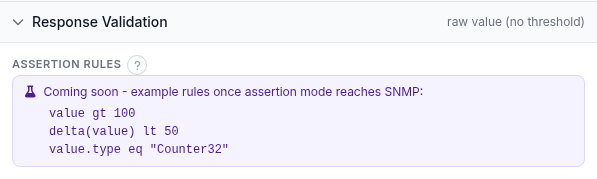
Uma verificação SNMP lê e registra o valor que o dispositivo reporta, e o mostra em um gráfico ao longo do tempo, mas ainda não julga esse valor contra um limite. O painel de Regras de asserção mostrado na captura de tela é um preview de uma linguagem de regras que a HostTracker já usa em outros lugares. A caixa está rotulada Em breve e ainda não faz nada para verificações SNMP. Até isso ser lançado, um resultado Fora do Ar de uma verificação SNMP significa que a própria consulta falhou: o dispositivo não respondeu, rejeitou as credenciais, ou o OID não existe. Não significa que o número devolvido ultrapassou algum limite que você definiu. Se você precisa de um alerta disparado por um limite numérico hoje, um monitor de carga de servidor (CPU/RAM/disco) contra um pequeno endpoint coletor já tem esse modelo de condição e debounce pronto. Veja o guia de CPU, RAM e disco.
Inscrições de Alerta
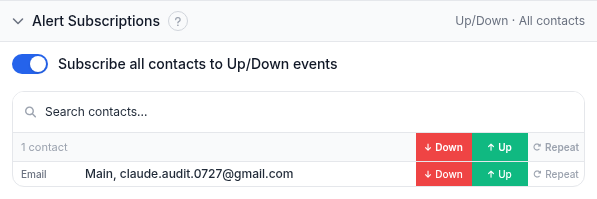
Escolha quais contatos são avisados sobre esse monitor e para quais eventos: No Ar, Fora do Ar e Repetir (um lembrete repetido enquanto a verificação continua fora do ar). Uma única chave inscreve todo contato em No Ar/Fora do Ar de uma vez, ou escolha contatos e eventos individuais na tabela abaixo dela. Por enquanto, Fora do Ar aqui reflete a acessibilidade do dispositivo e do OID, não o valor em si.
Inscrições de Relatório
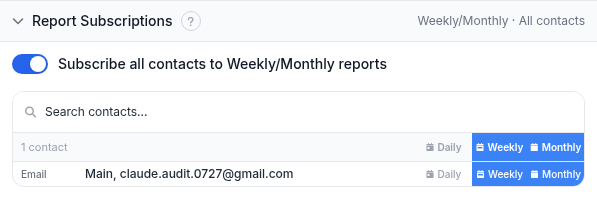
Separadamente dos alertas, escolha quem recebe relatórios periódicos para esse monitor - Diário, Semanal ou Mensal - por e-mail.
Exemplo prático
Registrando o uptime de um roteador de escritório: Host : Porta é o IP de gerenciamento voltado para a LAN do roteador e 161, o OID é 1.3.6.1.2.1.1.3.0 (sysUpTime), a versão SNMP é v2c com a community string configurada do dispositivo, e o comando é Get. O intervalo é definido em 10 minutos, frequente o suficiente para pegar uma reinicialização sem sobrecarregar o dispositivo. Como ainda não há um limite para falhar, deixe os alertas sem inscrição e acompanhe o valor pelo gráfico do monitor em vez disso. O ponto dessa verificação específica, hoje, é o registro histórico e não um alerta.
Solução de problemas
- Nenhuma resposta de jeito nenhum. Confirme que o dispositivo está acessível a partir da internet na porta que você especificou, que o firewall dele permite SNMP de entrada, e que a community string (ou as credenciais v3) está correta.
- Um valor volta mas não é o que você esperava. Confira novamente o OID contra a documentação do seu dispositivo, e tente GetNext em vez de Get se você estava só estimando o índice.
- O SNMPv3 falha onde o v2c funcionava. Nível de segurança, protocolo de autenticação e protocolo de privacidade todos precisam bater exatamente com a configuração do dispositivo. Uma incompatibilidade em qualquer um deles derruba o handshake inteiro, não só a parte faltante.
- Esperando um alerta quando o valor ultrapassa um limite. Isso ainda não está disponível para SNMP; o painel de Regras de asserção é um preview, não uma chave funcional. Use um monitor de carga de servidor com um coletor se você precisar de alertas por limite hoje.
- Preocupado com a community string visível na rede. Isso é uma característica do SNMP v1/v2c, não um bug na verificação. Mude para v3 com autenticação e privacidade se o valor ou o dispositivo for sensível.
Relacionados
- Todos os guias de monitoramento - o hub para todo tipo de verificação da HostTracker.
- Monitoramento de servidor: CPU, RAM e disco - a página de produto cobrindo tanto verificações SNMP quanto de carga de servidor.
- Guia de monitoramento de CPU, RAM e disco - o caminho alternativo para um valor numérico com alertas de limite funcionando hoje.
- O que é monitoramento de servidor - o contexto sobre para que essas verificações servem.
- Guia de verificação de banco de dados - outra verificação que roda a partir da infraestrutura privada da HostTracker em vez da rede pública.
- Modo de asserções e regras de validação de resposta - a linguagem de regras de validação de resposta mostrada em preview no painel de Regras de asserção acima.
- Todos os recursos de monitoramento da HostTracker - veja todo tipo de verificação lado a lado.