
Comment configurer une vérification Ping (guide pas à pas)
Une vérification Ping confirme qu'un serveur, un équipement réseau, ou n'importe quel point d'accès joignable sur internet répond aux requêtes d'écho ICMP. Elle fonctionne au niveau de la couche réseau, donc elle ne se soucie pas de savoir si quelque chose écoute sur un port précis ou sert des pages web : elle confirme uniquement que l'hôte répond quand on le pingue. Cela en fait un choix naturel pour les routeurs, les passerelles VPN, les répartiteurs de charge, et tout équipement pour lequel vous voulez une couverture de base en ligne/hors ligne sans configurer une vérification HTTP ou TCP. Si votre cible est un site web ou une API et que vous avez besoin de détails au niveau HTTP (codes de statut, corps de réponse, santé du certificat), une vérification HTTP est généralement le meilleur premier choix ; tournez-vous vers le ping quand vous voulez un test de joignabilité léger et indépendant du protocole, ou en complément d'un autre type de vérification.
Url / Domaine / IP
Saisissez le nom d'hôte, le domaine ou l'adresse IP que vous voulez pinguer dans le champ Url / Domaine / IP. Vous pouvez aussi donner au moniteur un nom court et facultatif ; c'est ce qui apparaît dans les alertes, les rapports et tous les widgets de statut que vous intégrez, donc un libellé reconnaissable (par exemple « core-router-fra » plutôt que l'IP brute) est plus facile à repérer plus tard.
Paramètres principaux
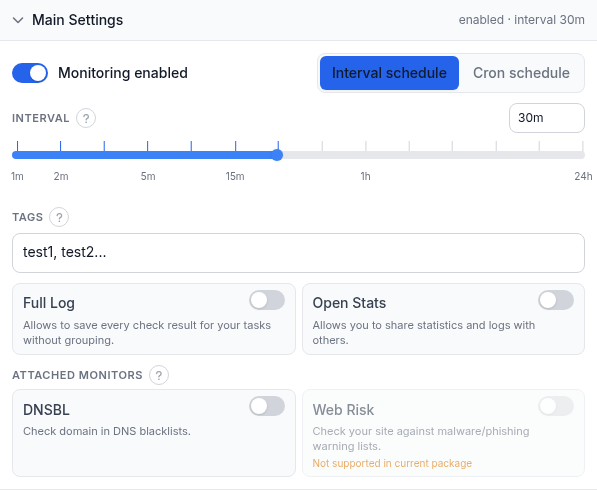
- Surveillance activée : met en pause ou reprend la vérification sans la supprimer. Désactivez-la pendant une maintenance planifiée pour ne pas être alerté pour un changement que vous connaissez déjà.
- Horaire d'intervalle / horaire cron : exécute la vérification à intervalle fixe ou selon une expression cron. Le curseur d'intervalle va de 1 minute jusqu'à 24 heures ; faites-le glisser ou saisissez une valeur exacte dans le champ à droite. L'horaire cron le remplace quand vous avez besoin d'un schéma que l'échelle d'intervalle ne peut pas exprimer.
- Étiquettes : des libellés séparés par des virgules (par exemple
infra, vpn) par lesquels filtrer et rechercher dans votre liste de moniteurs. Purement organisationnel - cela ne change pas le fonctionnement de la vérification. - Journal complet : enregistre chaque résultat de vérification individuel au lieu de regrouper les résultats identiques répétés. Activez-le pour un historique complet ; laissez-le désactivé pour garder un journal de vérification plus léger.
- Statistiques ouvertes : rend la page de statistiques et de journal de ce moniteur partageable avec des personnes non connectées à votre compte. Ne l'activez pas pour quoi que ce soit que vous préféreriez garder privé.
- Moniteurs attachés - DNSBL : exécute une vérification de liste noire DNS sur le même domaine selon son propre horaire de 12 heures, indépendamment de l'intervalle de ping ci-dessus. Un mauvais état détecté notifie conformément aux abonnements Down/Repeat dans Abonnements aux alertes, pas selon les propres événements de la vérification ping.
- Moniteurs attachés - Web Risk : exécute une vérification Google Web Risk sur le domaine pour les listes de logiciels malveillants et de phishing, aussi selon son propre horaire. C'est soumis au forfait - si votre compte ne l'inclut pas, le commutateur apparaît indisponible.
Configuration de la requête
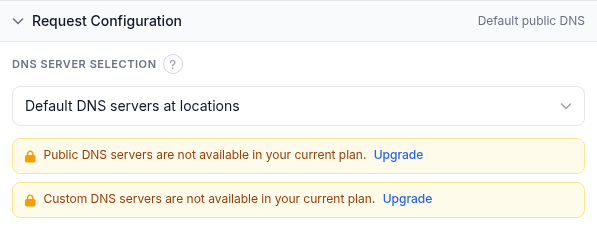
Cette section contient un seul contrôle, Sélection du serveur DNS, et il ne compte que lorsque votre cible est un nom d'hôte plutôt qu'une IP nue :
- Serveurs DNS par défaut des emplacements : chaque emplacement de surveillance résout votre hôte en utilisant son propre ensemble de serveurs DNS publics, donc la résolution suit les règles locales de cet emplacement, de la même manière que pour un vrai visiteur là-bas.
- DNS public : résout via un pool DNS public à la place, avec une liste facultative d'adresses IP de serveurs DNS publics à exclure pour ignorer des résolveurs spécifiques.
- Personnalisé : fournissez vos propres IP de serveurs DNS, une par ligne - collez une liste séparée par des virgules, des espaces ou des sauts de ligne et elle se répartit automatiquement en lignes. La vérification résout alors votre cible via ces serveurs au lieu des serveurs par défaut de chaque emplacement.
Public et Personnalisé sont soumis au forfait ; la capture d'écran ci-dessus montre les deux verrouillés derrière une bannière de mise à niveau sur ce compte particulier. Sur un forfait qui les inclut, le menu déroulant fonctionne de la même manière, simplement sans le verrou.
Validation de la réponse
Ping n'a pas de capture d'écran pour cette section, mais c'est tout de même un groupe complet dans le formulaire du moniteur, et c'est ce qui décide si une vérification compte comme réussie.
Une vérification réussit par défaut lorsqu'au moins l'une des 4 requêtes d'écho ICMP à l'adresse résolue reçoit une réponse. Si le premier candidat résolu ne répond pas, la vérification réessaie contre jusqu'à deux autres alternatives résolues par DNS avant d'être marquée en échec - un domaine porté par plusieurs enregistrements A peut continuer à afficher En ligne même si l'une de ces adresses cesse de répondre (voir Dépannage).
- Validation des IPs attendues : activez cette option pour exiger en plus que le DNS résolve votre hôte vers l'une d'une liste d'adresses IP que vous précisez (une adresse IPv4 ou IPv6 par ligne, même comportement de découpage au collage que la liste DNS personnalisée ci-dessus). Si l'hôte commence à se résoudre ailleurs - détournement DNS, enregistrement mal configuré, entrée expirée - la vérification échoue même si quelque chose à la nouvelle adresse répond toujours aux pings. Laissez-la désactivée si vous n'avez pas besoin d'épingler l'hôte à des adresses spécifiques.
Abonnements aux alertes
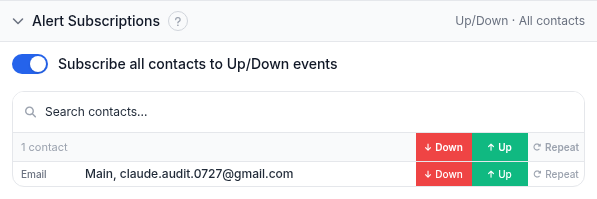
- Abonner tous les contacts aux événements Up/Down : un commutateur raccourci qui abonne tous les contacts de votre compte aux alertes Up et Down pour ce moniteur en une seule action.
- Puces Down / Up / Repeat par contact : choisissez exactement de quels événements chaque contact est informé. Down se déclenche lors d'une transition vers un état d'échec, Up se déclenche à la récupération, et Repeat renvoie la notification Down selon un horaire tant que le moniteur reste en panne, pour qu'une longue panne ne devienne pas silencieuse après la première alerte.
- Rechercher des contacts : filtre la liste par nom ou adresse.
Abonnements aux rapports
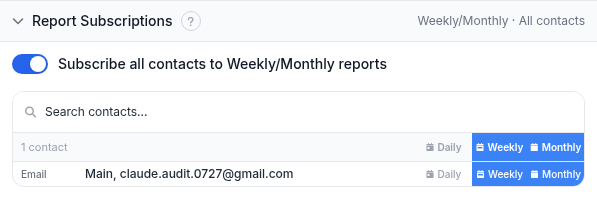
- Abonner tous les contacts aux rapports Hebdomadaire/Mensuel : abonne tous les contacts aux deux fréquences en une fois.
- Puces Daily / Weekly / Monthly par contact : choisissez quel e-mail récapitulatif de disponibilité récurrent chaque contact reçoit, indépendamment des alertes en temps réel ci-dessus.
Emplacements de surveillance
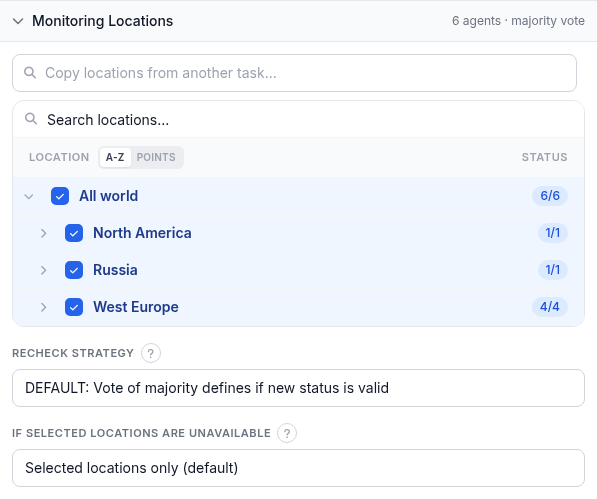
- Arbre d'emplacements : choisissez lesquels des emplacements de surveillance de HostTracker exécutent cette vérification, par continent, pays, ou monde entier. La colonne de statut montre combien d'agents dans chaque groupe sont actuellement sélectionnés sur combien en existent là. « Copier les emplacements depuis une autre tâche » clone l'ensemble d'emplacements d'un moniteur existant plutôt que de le reconstruire à la main.
- Rechercher des emplacements : filtre l'arbre par nom.
- Stratégie de revérification : contrôle comment un changement d'état est confirmé avant d'être accepté. Le défaut est un vote majoritaire parmi les emplacements de revérification. Alternatives : un nombre spécifique d'emplacements confirmant Down (curseur de 1 à 7, puisque le pool de revérification puise parmi jusqu'à 7 emplacements) ; aucune revérification du tout, donc le premier résultat est immédiatement fiable ; accord complet entre tous les emplacements de revérification ; ou accord complet pour Down tandis que Up n'a besoin que d'une majorité.
- Si les emplacements sélectionnés sont indisponibles : ce qui se passe quand vos emplacements choisis sont temporairement hors ligne. « Emplacements sélectionnés uniquement » (par défaut) attend qu'un revienne plutôt que de substituer des données d'ailleurs. « Emplacements les plus proches » relance la vérification depuis les emplacements disponibles les plus proches à la place. « N'importe quel emplacement » se rabat sur n'importe quel emplacement disponible dans le monde.
Exemple concret
Supposons que vous vouliez une surveillance de joignabilité de base sur une passerelle VPN de bureau qui ne fait pas tourner de serveur web. Réglez Url / Domaine / IP sur l'IP publique de la passerelle et nommez-la « hq-vpn-gateway ». Une IP nue n'a rien à résoudre, donc laissez Configuration de la requête sur son défaut, et laissez aussi Validation de la réponse sur son défaut - une seule réponse ICMP sur quatre tentatives suffit pour la déclarer En ligne. Dans Emplacements de surveillance, choisissez deux ou trois emplacements répartis sur plusieurs régions pour qu'un incident réseau local près de l'un d'eux ne déclenche pas à lui seul une fausse alerte, et laissez Stratégie de revérification sur le vote majoritaire par défaut. Dans Abonnements aux alertes, abonnez votre contact d'exploitation à la fois à Down et Up, et activez Repeat pour continuer à être informé si la panne dure. Ajoutez un abonnement au rapport Hebdomadaire si vous voulez un récapitulatif de disponibilité récurrent en plus des alertes en temps réel.
Dépannage
- ICMP bloqué, HTTP fonctionne : de nombreux fournisseurs cloud et pare-feux bloquent l'écho ICMP par défaut tout en continuant à servir normalement le HTTP/HTTPS, donc une vérification ping peut signaler Hors ligne pour un site qui sert bel et bien du trafic. Ouvrez soit l'ICMP sur le pare-feu de la cible, soit passez à une vérification HTTP ou Port TCP pour cette cible.
- Les IPs attendues deviennent périmées : si vous avez activé la Validation des IPs attendues puis migré d'hébergeur ou changé de fournisseur DNS, vous verrez de faux Hors ligne jusqu'à ce que la liste d'IPs attendues corresponde aux nouvelles adresses.
- Plusieurs candidats DNS peuvent masquer une seule adresse morte : puisque la vérification réessaie contre jusqu'à deux autres alternatives résolues par DNS avant d'échouer, un domaine avec plusieurs enregistrements A peut continuer à afficher En ligne même si une adresse spécifique a cessé de répondre. Surveillez directement les IPs individuelles, ou activez la Validation des IPs attendues, pour le détecter.
- Aucun timeout ajustable : contrairement à certains autres types de vérification, la temporisation par tentative du ping n'est pas un paramètre réglable depuis ce formulaire. Pour plus de tolérance avant qu'une alerte ne se déclenche, utilisez Stratégie de revérification dans Emplacements de surveillance plutôt que de chercher un champ de timeout qui n'existe pas.
- Une réponse ne signifie pas que le service est en bonne santé : elle vous dit seulement que l'équipement répond à l'ICMP, pas que quoi que ce soit d'utile y tourne. Associez une vérification ping à une vérification HTTP ou Port sur le même hôte pour confirmer que le service réel sert bien du trafic.
Voir aussi
- Surveillance Ping - la page produit pour ce type de vérification.
- Test Ping gratuit - lancez un ping ponctuel sans créer de moniteur.
- Surveillance Traceroute - l'étape naturelle suivante quand une vérification ping passe Hors ligne : voir où le trajet se casse.
- Outil Traceroute gratuit - lancez un trace ponctuel instantanément.
- Mode assertion : référence complète de la validation de réponse - le langage de règles de validation de réponse utilisé sur d'autres types de vérification.
- Le site est-il en panne pour tout le monde ou juste pour moi ? - la version ponctuelle de la même question, exécutée depuis l'extérieur de votre réseau.
- Tous les guides de surveillance - le guide de configuration pour chaque autre type de vérification.