
Hoe u een TCP-poortcheck opzet (volledige gids)
Een TCP-poortcheck opent een TCP-verbinding naar een specifieke poort op uw server en bevestigt dat de verbinding (en, als u het aanzet, een TLS-handshake) slaagt, en controleert optioneel ook of de data die de dienst terugstuurt overeenkomt met een patroon dat u instelt. Dat maakt hem de juiste tool wanneer het u gaat om "luistert en antwoordt deze specifieke dienst" in plaats van "bestaat deze via ICMP bereikbare host" (dat is een ping-check) of "laadt deze webpagina correct" (dat is een HTTP-check). SSH, SMTP, databaselisteners, mailrelays, en elke andere niet-HTTP TCP-dienst passen hier van nature bij.
Url / Domein / IP
Voer het doel in als host:port, bijvoorbeeld example.com:22 voor SSH of example.com:465 voor SMTPS - de poort maakt deel uit van het adres, geen apart veld. U kunt de monitor ook een korte naam geven, die verschijnt in waarschuwingen, rapporten en alle statuswidgets.
Hoofdinstellingen
Er is geen screenshot van deze sectie specifiek voor het checktype Poort, maar hij gebruikt dezelfde groep Hoofdinstellingen als elk ander checktype, dus elke regelaar hieronder is precies wat u op het formulier zult zien:
- Monitoring ingeschakeld: pauzeert of hervat de check zonder hem te verwijderen.
- Intervalschema / Cronschema: draai op een vast interval (de schuif loopt van 1 minuut tot 24 uur) of op een cron-expressie voor een patroon dat de intervalschaal niet kan uitdrukken.
- Tags: door komma's gescheiden labels om uw monitorlijst te filteren en doorzoeken. Puur organisatorisch - ze hebben geen invloed op de check zelf.
- Volledig log: slaat elk individueel checkresultaat op in plaats van herhaalde identieke resultaten te groeperen.
- Open statistieken: maakt de statistieken- en logpagina van deze monitor deelbaar met mensen die niet zijn ingelogd op uw account.
- Gekoppelde monitors - DNSBL: draait een DNS-blacklistcheck tegen hetzelfde domein op zijn eigen schema van 12 uur, los van het interval van de poortcheck. Een gedetecteerde slechte status waarschuwt volgens de Down/Repeat-abonnementen in Waarschuwingsabonnementen.
- Gekoppelde monitors - Web Risk: draait een Google Web Risk-check op malware/phishing tegen het domein, ook op zijn eigen schema. Pakketgebonden.
Verzoekconfiguratie
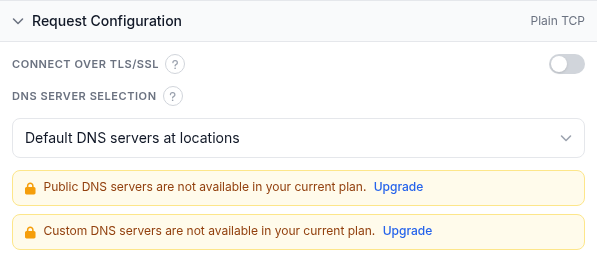
- Verbinden via TLS/SSL: standaard uit, wat betekent dat de check een gewone TCP-socket belt. Zet hem aan om de verbinding in een TLS-handshake te wikkelen voordat het antwoord gelezen wordt - de juiste keuze voor HTTPS-achtige diensten, SMTPS, of een databaselistener die TLS vereist. Dit aanzetten onthult ook een subgroep TLS-handshake onder Antwoordvalidatie (hieronder) met certificaatvalidatiebeleid. De opmerking bij deze schakelaar noemt "een gewone TCP- (of UDP-)dienst", maar er is nergens een protocolkiezer in dit formulier: elke Poortcheck belt TCP. Moet u een UDP-dienst monitoren, dan biedt dit checktype die optie momenteel niet.
- DNS-serverselectie: dezelfde keuzelijst die bij andere checktypen wordt gebruikt. Standaard-DNS-servers per locatie herleidt de host via de eigen publieke DNS-servers van elke monitoringlocatie, volgens de lokale regels. Publieke DNS herleidt via een publieke DNS-pool, met een optionele lijst uitgesloten resolvers. Aangepast laat u uw eigen DNS-server-IP's opgeven, één per rij. Op het account waar deze screenshot vandaan komt, zijn Publiek en Aangepast beide vergrendeld achter een upgradebanner, wat een pakketlimiet is en geen ontbrekende functie.
Antwoordvalidatie
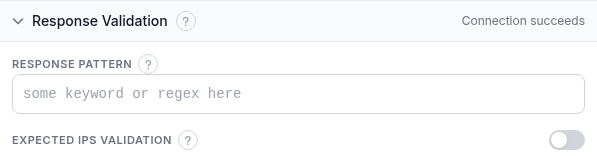
Standaard slaagt een check wanneer de verbinding tot stand komt - en, als TLS/SSL aan staat, wanneer de handshake ook lukt. De regelaars hier laten u meer eisen dan dat:
- Antwoordpatroon: een optionele reguliere expressie waaraan het antwoord moet voldoen. Is dit ingesteld, dan leest de check tot 1 MB van het TCP- (of TLS-, indien ingeschakeld) antwoord en faalt wanneer het patroon niet overeenkomt; laat het leeg om alleen de verbinding te beoordelen. (Oudere documentatie noemde dit een "TCP-antwoordzoekpatroon"; de huidige UI noemt het Antwoordpatroon.) Omdat alleen de eerste 1 MB wordt gelezen, plaatst u de tekst waarop u matcht dicht bij het begin van wat de dienst stuurt - een banner- of groetregel werkt goed; content die de dienst later in een lang antwoord stuurt, wordt niet gezien.
- TLS-handshake (alleen zichtbaar wanneer Verbinden via TLS/SSL aan staat): vier onafhankelijke schakelaars die de handshake zelf beoordelen. Geldige SSL-certificaatketen vereisen laat de check falen op een verlopen, zelfondertekend, naamverkeerd of verkeerd geketend certificaat. Sterk TLS-protocol vereisen (1.2 of hoger) laat een server falen die alleen TLS 1.0/1.1 of SSL aanbiedt. Zwakke ciphers blokkeren (128-bit of lager) laat de check falen wanneer de onderhandelde ciphersuite 128-bit of zwakker is. SSL-certificaatintrekking controleren doet een online CRL/OCSP-opzoeking tijdens de handshake en faalt op een ingetrokken certificaat; dat is een aparte pakketrecht ten opzichte van de andere drie.
- Validatie van verwachte IP's: zet dit aan om bijkomend te eisen dat DNS uw host herleidt naar een van een lijst IP-adressen die u opgeeft, één per rij. Begint de host ergens anders te resolven - DNS-kaping, een verouderd record, een migratie die u vergat hier bij te werken - dan faalt de check ook al antwoordt het nieuwe adres nog steeds.
Waarschuwingsabonnementen
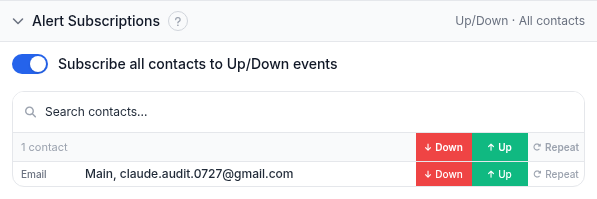
- Alle contacten abonneren op Up/Down-gebeurtenissen: abonneert elk contact op uw account in één keer op zowel Up- als Down-waarschuwingen.
- Down/Up/Repeat-chips per contact: Down gaat af bij een overgang naar een falende status, Up gaat af bij herstel, en Repeat stuurt de Down-melding volgens een schema opnieuw zolang de monitor down blijft.
- Contacten zoeken: filtert de lijst op naam of adres.
Rapportabonnementen
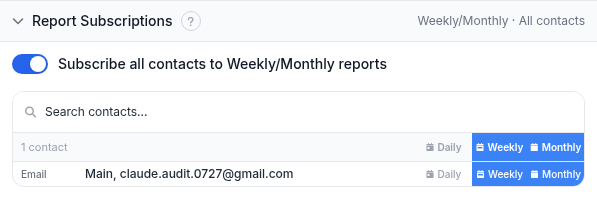
- Alle contacten abonneren op wekelijkse/maandelijkse rapporten: abonneert elk contact op beide frequenties tegelijk.
- Daily/Weekly/Monthly-chips per contact: kies welke terugkerende uptime-samenvattingsmail elk contact ontvangt, los van de realtime-waarschuwingen hierboven.
Monitoringlocaties
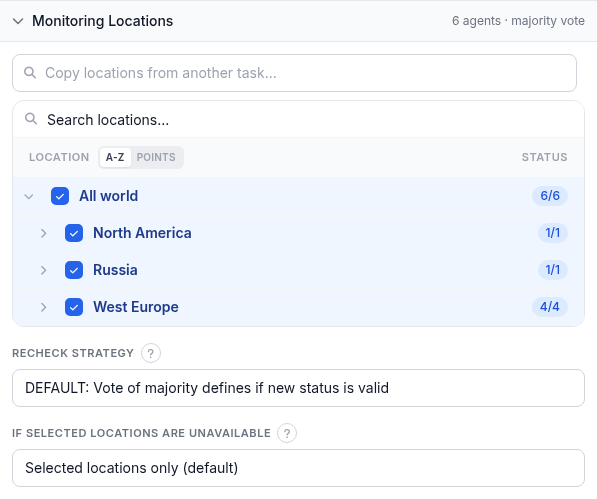
- Locatieboom: kies welke monitoringlocaties deze check draaien, per continent, land, of hele wereld; "Locaties kopiëren van een andere taak" kloont de set van een bestaande monitor.
- Hercontrolestrategie: hoe een statuswijziging bevestigd wordt. Standaard is een meerderheidsstemming onder de hercontrolelocaties; alternatieven zijn een specifiek aantal dat Down bevestigt (schuif 1 tot 7, overeenkomend met de grootte van de hercontrolepool), helemaal geen hercontrole, volledige overeenstemming over alle hercontrolelocaties, of volledige overeenstemming voor Down terwijl Up slechts een meerderheid nodig heeft.
- Als geselecteerde locaties onbeschikbaar zijn: "Alleen geselecteerde locaties" (standaard) wacht tot een gekozen locatie terugkomt; "Dichtstbijzijnde locaties" voert de check in plaats daarvan opnieuw uit vanaf de dichtstbijzijnde beschikbare; "Elke locatie" valt terug op elke beschikbare locatie wereldwijd.
Uitgewerkt voorbeeld
Een SMTPS-mailrelay op poort 465 monitoren: zet Url / Domein / IP op mail.example.com:465, zet Verbinden via TLS/SSL aan, en zet Geldige SSL-certificaatketen vereisen plus Sterk TLS-protocol vereisen aan onder TLS-handshake zodat een verlopend of gedowngraded certificaat u waarschuwt voordat klanten gestuiterde mail merken. Laat Antwoordpatroon leeg tenzij de dienst een herkenbare banner stuurt die u wilt bevestigen. Kies drie of vier Monitoringlocaties verspreid over regio's, houd de standaard meerderheidsstemming-Hercontrolestrategie aan, abonneer uw operationeel contact op Down en Up met Repeat aan, en voeg een Weekly-rapportabonnement toe voor een terugkerende uptime-samenvatting.
Probleemoplossing
- Geen UDP-optie: ondanks dat de tooltip bij Verbinden via TLS/SSL UDP noemt, opent dit formulier altijd alleen een TCP-verbinding. Is uw doeldienst alleen UDP, dan is een Poortcheck er vandaag niet de juiste tool voor.
- Poort bereikbaar maar check faalt toch met TLS aan: controleer de TLS-handshake-schakelaars één voor één. Een certificaat dat technisch geldig maar zelfondertekend is, of een server die nog steeds TLS 1.0/1.1 aanbiedt, faalt respectievelijk Geldige SSL-certificaatketen vereisen of Sterk TLS-protocol vereisen, ook al zou een gewone verbinding slagen.
- Antwoordpatroon matcht nooit: onthoud dat alleen de eerste 1 MB van het antwoord wordt gelezen. Een patroon dat alleen diep in een lang antwoord voorkomt, of een dienst die een grote payload stuurt voordat de tekst waarop u matcht komt, zal nooit matchen - houd het patroon bij iets dat de dienst vroeg stuurt.
- Poort geblokkeerd bij de firewall, niet de dienst: een check die faalt ook al werkt de dienst lokaal prima, is vaak een security-group- of firewallregel die die specifieke poort blokkeert voor de monitoringlocaties van HostTracker, geen dienstprobleem - bevestig dat de poort open staat voor extern verkeer, niet alleen dat het proces draait.
- Verwachte IP's raken verouderd na een migratie: gebruikt u Validatie van verwachte IP's en verhuist u de dienst later naar een nieuwe host of IP, werk dan de lijst bij - anders krijgt u valse Downs ook al is de dienst bereikbaar op het nieuwe adres.
Gerelateerd
- Gedistribueerde beschikbaarheidsmonitoring - de productpagina die TCP-poortchecks behandelt.
- Gratis poortcheck - test een host:port-paar eenmalig, meteen, zonder een monitor aan te maken.
- Ping-check: volledige opzetgids - de eenvoudigere bereikbaarheidscheck wanneer u geen specifieke poort of dienst hoeft te testen.
- Assertion Mode: volledige referentie voor antwoordvalidatie - de taal voor antwoordvalidatieregels die bij andere checktypen wordt gebruikt.
- Hoe u controleert of een poort open is - de eenmalige versie van deze check, plus de commando's
ncennmaperachter. - Alle monitoringhandleidingen - de opzetgids voor elk ander checktype.