
How to Set Up a Transaction Check (Step-by-Step)
- guide
- transaction monitoring
- browser monitoring
- synthetic monitoring
- uptime monitoring
- HostTracker
A transaction check drives a real headless browser through a sequence of steps you define - clicking elements, filling in forms, navigating between pages, waiting, and verifying content - and fails if any step doesn't behave the way you expect. Where an HTTP check confirms a single URL responds correctly, a transaction check confirms an entire user journey still works end to end: log in, search, add to cart, check out, or any other flow where a single-page check wouldn't catch a broken step in the middle. This monitoring type typically requires a package that includes it, so confirm your plan supports transaction monitoring before building a complex flow.
Initial navigation step
Enter the URL the browser should open first in the Initial navigation step field - this is where the whole transaction begins, before any of the steps below run. You can also give the monitor an optional name (for example "checkout flow - EU store") to make it recognizable in alerts and reports later.
Main Settings
- Monitoring enabled: pauses or resumes the check without deleting it.
- Interval schedule / Cron schedule: run on a fixed interval or a cron expression. Since a full browser flow takes noticeably longer per run than a simple ping or HTTP check, budget the interval accordingly.
- Transaction timeout: the maximum total time allowed for the whole sequence of steps to finish before the check triggers an alert. It defaults to 40 seconds, and the slider runs from 1 second up to 60 seconds for most accounts.
- Tags: comma-separated labels for filtering and searching your monitor list.
- Full Log / Open Stats: Full Log saves every individual check result instead of grouping repeated identical ones; Open Stats makes the statistics and log page shareable with people who aren't logged in to your account. Transaction checks don't have the DNSBL/Web Risk attached-monitor toggles that Ping, Port, and HTTP checks carry - this type only exposes these two flags here.
Transaction Steps
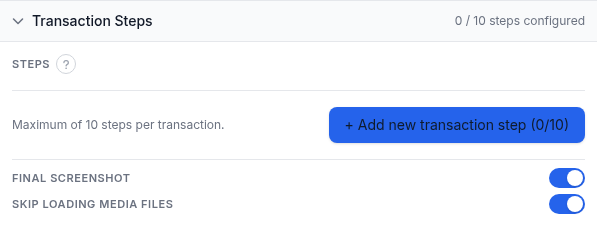
This is the heart of a transaction check. You build an ordered list of steps - up to 10 per transaction - each one an action the browser performs or a condition it verifies. Click "+ Add new transaction step" to append one, choose its Action, and fill in the fields that action needs:
- Click page element: a CSS selector identifying what to click, plus an After click behavior choice - end the step immediately, wait a few seconds (a delay slider from 1 to 10 seconds), wait for the resulting navigation to finish, or wait for navigation and fail the step if none happens.
- Fill in a text input: a CSS selector for the input field and the text to type into it - useful for search boxes, login forms, or any field the flow needs populated.
- Verify textual content of a page: one or more comma-separated keywords, plus a match mode - any keyword present, all keywords present, any keyword absent, or all keywords absent - with optional case-sensitive matching and an option to check only visible content (so text hidden in the DOM, like a collapsed menu, doesn't produce a false match).
- Verify page elements: a CSS selector to find, with a validation strategy - fail if no matching elements are found, fail if any are found, or fail if there isn't exactly one. Good for confirming a button, banner, or error message is (or isn't) present.
- Go back to the previous page: triggers browser back navigation, with a timeout slider from 1 to 40 seconds for how long to wait for it to complete.
- Navigate to a new page: a target Page URL plus a navigation timeout slider from 1 to 40 seconds.
- Wait for specified time: a fixed delay from 1 to 10 seconds, for content that needs a moment to settle before the next step runs.
Below the step list, two switches apply to the whole run, both on by default: Final screenshot captures an image of the last page state, which is genuinely useful for diagnosing why a step failed even though it adds a small amount of overhead; Skip loading media files speeds up each run (and reduces bandwidth) by not loading images, video, or fonts during the transaction - fine if you're testing functional flow rather than what the page visually renders.
Response Validation
This section has no screenshot in this guide, but it's a full group in the form, and it's separate from the per-step content checks above - it judges the run as a whole.
- Fail on console error: when on, any browser console error raised during the transaction fails the check, unless it matches the allow-list below. It's off by default.
- Expected console errors (only shown when the switch above is on): an optional comma-separated allow-list of error text to ignore, for sites that log harmless warnings or third-party script noise you don't want triggering alerts.
Alert Subscriptions
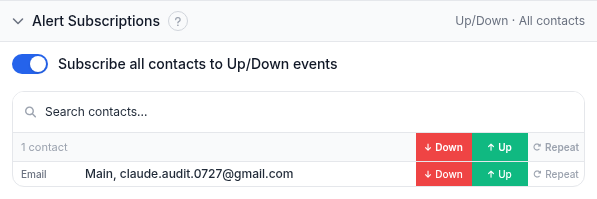
- Subscribe all contacts to Up/Down events: subscribes every contact on your account to both Up and Down alerts in one move.
- Down / Up / Repeat chips per contact: Down fires when a step fails and the monitor transitions to a failing state, Up fires on recovery, and Repeat resends the Down notification on a schedule for as long as the flow keeps failing.
- Search contacts: filters the contact list by name or address.
Report Subscriptions
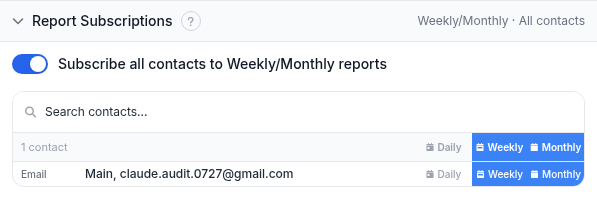
- Subscribe all contacts to Weekly/Monthly reports: subscribes every contact to both cadences at once.
- Daily / Weekly / Monthly chips per contact: choose which recurring uptime summary email each contact receives.
Monitoring Locations
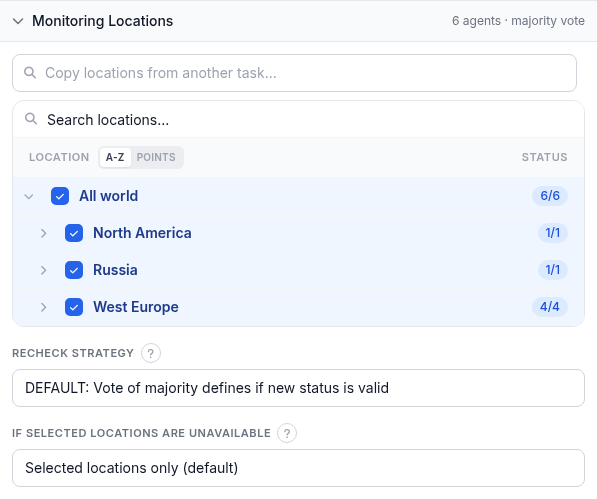
- Location tree: pick which monitoring locations run the transaction, by continent, country, or all world; "Copy locations from another task" clones an existing monitor's set.
- Recheck strategy: how a state change gets confirmed. Default is a majority vote among recheck locations; alternatives are a specific number confirming Down (slider 1 to 7), no recheck at all, full agreement across all recheck locations, or full agreement for Down while Up only needs a majority.
- If selected locations are unavailable: "Selected locations only" (default) waits for a chosen location to come back; "Closest locations" reruns from the nearest available ones instead; "Any location" falls back to anywhere available worldwide.
Worked example
A realistic checkout monitor for an online store: step 1, Navigate to a new page pointed at the product listing; step 2, Click page element on a specific product's "Add to cart" link, with After click behavior set to wait for navigation; step 3, Verify textual content of a page for the keyword "Cart" to confirm the item landed there; step 4, Click page element on the checkout button, waiting for navigation again; step 5, Fill in a text input for the email field with a test address; step 6, Verify page elements to confirm the payment form's submit button is present. That's 6 of the 10 available steps, leaving room to extend the flow later. Turn on Final screenshot so a failure leaves you a picture of where the flow actually stopped, keep Skip loading media files on since this test cares about functional flow, and subscribe your team to Down, Up, and Repeat under Alert Subscriptions.
Troubleshooting
- A step that used to pass suddenly fails: the most common cause is a CSS selector breaking after the target site's markup changed - a redesign, an A/B test, or a class name rename. Open the failing step and confirm the selector still matches an element on the live page.
- A navigation step times out: each Navigate to a new page or Go back step has its own timeout slider up to 40 seconds, separate from the overall Transaction timeout in Main Settings - if a specific page is just slow to load, raise that step's own timeout rather than only the total.
- Fail on console error trips on noise you don't care about: third-party ad or analytics scripts often log harmless console errors. Rather than leaving Fail on console error off entirely, add the known error text to the Expected console errors allow-list so real errors still get caught.
- Verify textual content matches (or doesn't) unexpectedly: check whether Check only visible content and Case sensitive match are set the way you expect - hidden DOM text can produce a false positive with the setting off, and a capitalization change between page variants can produce a false negative with case-sensitive matching on.
- The flow needs more than 10 steps: the step list is capped at 10. Long, complex journeys need to be trimmed to the steps that actually validate the flow, or split into two separate transaction monitors covering different halves of the journey.
Related
- Transaction Monitoring - the product page for this check type.
- Browser Access Timing - another check type that drives a real browser, useful when you want load-time detail rather than a multi-step flow.
- Page Speed Check: Full Setup Guide - the sibling guide for browser-based performance monitoring.
- Assertion Mode: Complete Response Validation Reference - the response-validation rule language used on other check types.