
How to Set Up a Website Content Check
- guide
- content check monitoring
- keyword monitoring
- website content monitoring
- defacement detection
- out of stock monitoring
Content Check loads your page in a real browser and looks for specific text in the page as it actually renders, not just in the raw HTML the server first sends. That catches a class of failure a plain HTTP status check cannot see at all: a page that returns a normal 200 OK while quietly showing a database error message, a defaced page, a price that silently changed, or a product that has gone out of stock. Because it runs in a real browser, content injected by JavaScript after the initial load is checked too, not only what is present in the raw response. If all you need to know is whether the server answers with the right status code, headers or body pattern, the HTTP check guide is the closer fit and gives you more monitoring locations and a full response-validation rule language; reach for Content Check specifically when the failure you are worried about is "the page loads fine but shows the wrong thing."
Main Settings
This type has no dedicated screenshot for its Main Settings group, but every control in it is standard across HostTracker's monitor types:
- Url/Domain/IP - the page to load, for example a full
https://example.comURL. - Name - an optional label for this monitor in your dashboard, alerts, reports and widgets.
- Interval schedule / Cron schedule - a segmented toggle between a simple recurring interval and a full cron expression for custom schedules (hourly, daily, weekly, monthly presets, or advanced cron syntax). The minimum available interval depends on your plan.
- Timeout - how long to wait for the page to finish before the check fails, from 1 up to 120 seconds for this type. The higher ceiling compared to a plain HTTP check reflects that a full browser page load genuinely takes longer than a bare request. If you leave it untouched, the check uses a 40-second default; you only need to raise or lower it if your page is unusually slow or you want a tighter number.
- Tags - free-text labels for grouping and filtering this monitor.
- Full Log - saves every individual check result for this monitor without grouping them.
- Open Stats - lets you share this monitor's statistics and logs with others, including people who are not signed in.
This group also carries the Enabled toggle that pauses or resumes the monitor.
Response Validation
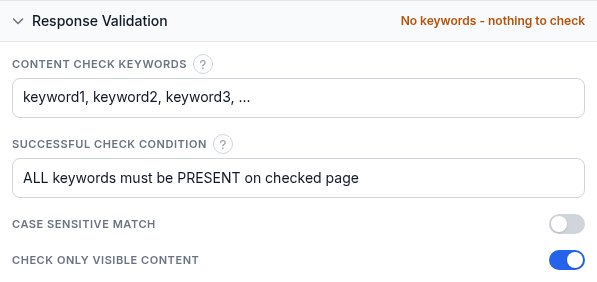
This is the whole check for this type - there is no separate probe/request configuration group, because the keyword match against the rendered page is both the request and the verdict.
- Content check keywords - one or more keywords, entered as a comma-separated (or one-per-line) list. This field is required; a monitor with no keywords has nothing to check. The combined keyword text is capped at 255 characters, so favor a few short, distinctive fragments over one long sentence.
- Successful check condition - decides how the keywords turn into a pass or fail, with four options exactly as the dropdown presents them:
ANY keyword must be PRESENT on checked page(the default - passes if at least one keyword is found),ALL keywords must be PRESENT on checked page(every keyword must be found),ANY keywords must be ABSENT on checked page(fails as soon as any one of the keywords appears), andALL keywords must be ABSENT on checked page(fails only once every keyword has appeared). Use a PRESENT condition to confirm something is still there (a buy button, a success message); use an ABSENT condition to alert when something bad shows up (an error string, a banned word, a defacement signature). - Case sensitive match - off by default. Switch it on if the exact letter case of your keyword matters.
- Check only visible content - on by default. When on, keywords hidden by CSS (
display:none,visibility:hidden, or zero size) do not count as present, so text that exists in the markup but is never actually shown to a visitor will not produce a false pass or a false alarm depending on your condition.
If your package does not include keyword monitoring, this section shows a note that keyword monitoring is disabled, with a link to change your package.
Monitoring Locations
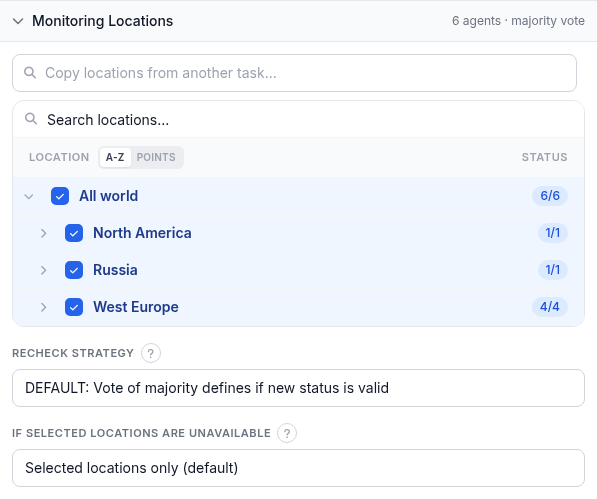
- Locations - a searchable checkbox tree of regions and individual monitoring points. At least one location must be selected for this monitor to be considered fully set up.
- Recheck strategy - what happens when a check detects a state change. The default reruns the check from several locations and accepts the new state by majority vote, to guard against a false positive from one flaky location. Alternatives: a specified number of locations must confirm a Down (reveals a Down confirmations slider from 1 to 7); no recheck at all; full agreement of every recheck location; or full agreement required for Down while Up only needs a majority.
- If selected locations are unavailable - "Selected locations only" (default) waits for your chosen locations to return; "Closest locations" substitutes the nearest available ones; "Any location" falls back worldwide.
Alert Subscriptions
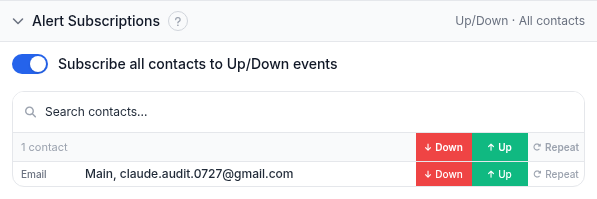
A switch subscribes every contact to Up/Down events in one step, or you can pick individual contacts and subscribe them to Down, Up and Repeat (repeated-Down reminders) separately in the table below. If this section is left empty, no alerts will be sent for this monitor at all.
Report Subscriptions
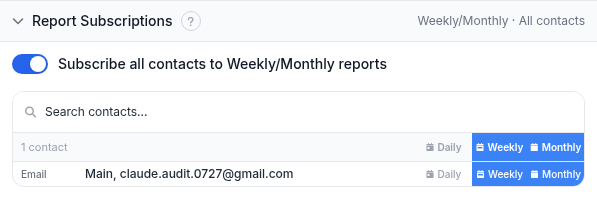
The same pattern applies to uptime reports: subscribe every contact to Weekly and Monthly reports with one switch, or choose Daily, Weekly and Monthly individually per contact.
Worked example
Say an online store wants to know the moment a flagship product goes out of stock, and separately wants to know if the homepage silently starts showing an application error while still answering with a 200. For the first case, you would set the URL to the product page, enter the keyword that only appears when the item is purchasable, such as Add to Cart, and leave the Successful check condition on the default ANY keyword must be PRESENT. The check passes while the button text is there and goes Down the moment it disappears, which is exactly the out-of-stock signal. For the second case, you would point a separate Content Check monitor at the homepage, enter a keyword that only ever shows up in a failure state, such as Internal Server Error, and switch the condition to ALL keywords must be ABSENT, so the check stays Up as long as that text never appears and goes Down the instant it does. In both cases you would leave Case sensitive match off, since the wording is unlikely to change case, and leave Check only visible content on, so a hidden error banner that exists in the markup but is never actually shown to a real visitor does not trigger a false alarm.
Troubleshooting
- The check never goes Down even though the page clearly changed. Check whether Case sensitive match is on and your keyword's letter case no longer matches the page exactly, or whether Check only visible content is filtering out text that lives in a hidden element. Test with Check only visible content off first to confirm the keyword is really there, then decide whether the visible-only behavior is what you actually want.
- The check flaps between Up and Down on a page that looks unchanged to you. The keyword may sit inside dynamic content that rotates, such as a carousel, a rotating banner, or an alternating localized string. Pick a more stable keyword, or switch to the ALL condition with several keywords so a single rotating element cannot flip the whole verdict.
- The check started failing right after you added a new keyword under "ALL keywords must be PRESENT." That condition requires every keyword in the list to be found, so adding one more keyword raises the bar for every future check. Confirm the new keyword genuinely appears verbatim on the page, or switch to ANY if a single match should be enough.
- The Content check keywords field shows a note that keyword monitoring is disabled. Your account's current package does not include this feature; the note links directly to changing your package.
- Your keyword text seems to get cut off when you save. The combined keyword field is capped at 255 characters. Use several short, distinctive fragments instead of one long phrase.
Related
- Distributed availability monitoring - the product page covering this check type.
- Free site content check tool - run a one-off check before setting up ongoing monitoring.
- HTTP check guide - for validating status codes, headers and response patterns instead of rendered-page text.
- Response validation rules - the rule language used for validating HTTP and API checks.